Fractal windows
Fractal windows contain the fractals that you work on in Ultra Fractal. While
you edit the fractal using the Fractal
Properties and Layer Properties
tool windows, the fractal window is continually updated to show the result of
your changes.
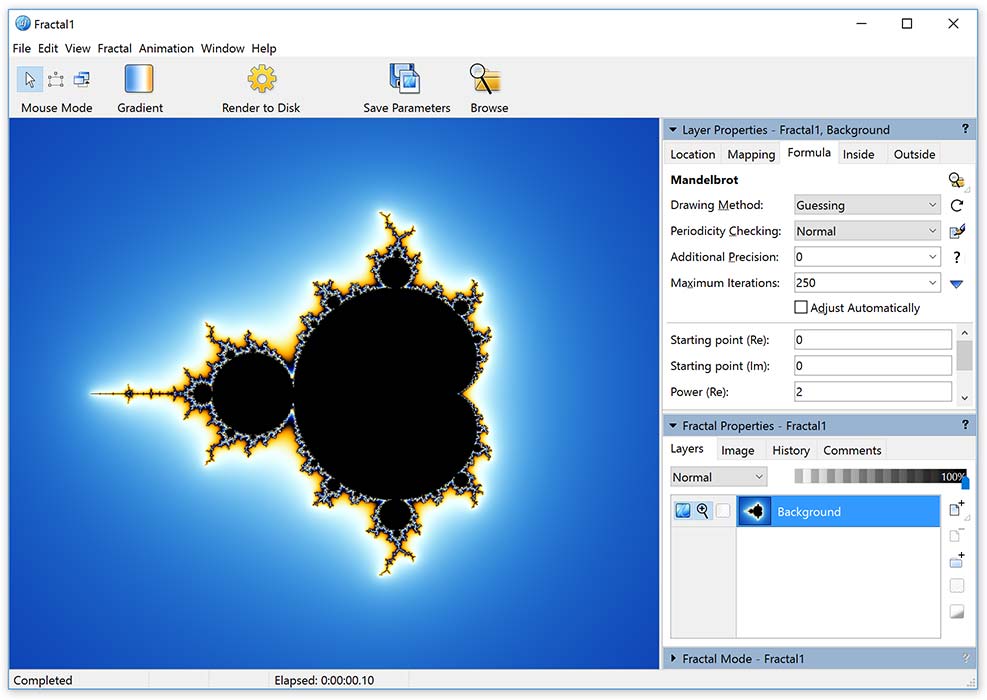
- The mouse mode buttons show and select the active mouse mode. The
mouse mode determines what happens when you click and drag inside the fractal
window. There are three mouse modes:
- The Gradient button opens the gradient
editor associated with the fractal window to edit the colors of the fractal.
- The Render to Disk button starts rendering the fractal or animation
to disk, creating a high-resolution image or a fractal movie with better quality
than possible in the fractal window. See Rendering
images.
- The Save Parameters button saves the fractal to a parameter set.
See Parameter files.
- The Browse button displays the browser to organize and open your fractal-related files.
- The dock bar on the right contains docked tool windows. See Workspace.
- When you resize the fractal window, by default the fractal resizes together with the window. You can change the resize behavior with the Maintain width/height ratio and Resize with fractal window checkboxes in the Image tab of the Fractal Properties tool window. If the fractal doesn't fill the window, the color of the area around the fractal can be customized with the Background color setting in the Fractal tab of the Preferences dialog.
Next: Normal mode
See Also
Keyboard shortcuts for fractal windows
Animation
Exporting and rendering
Workspace