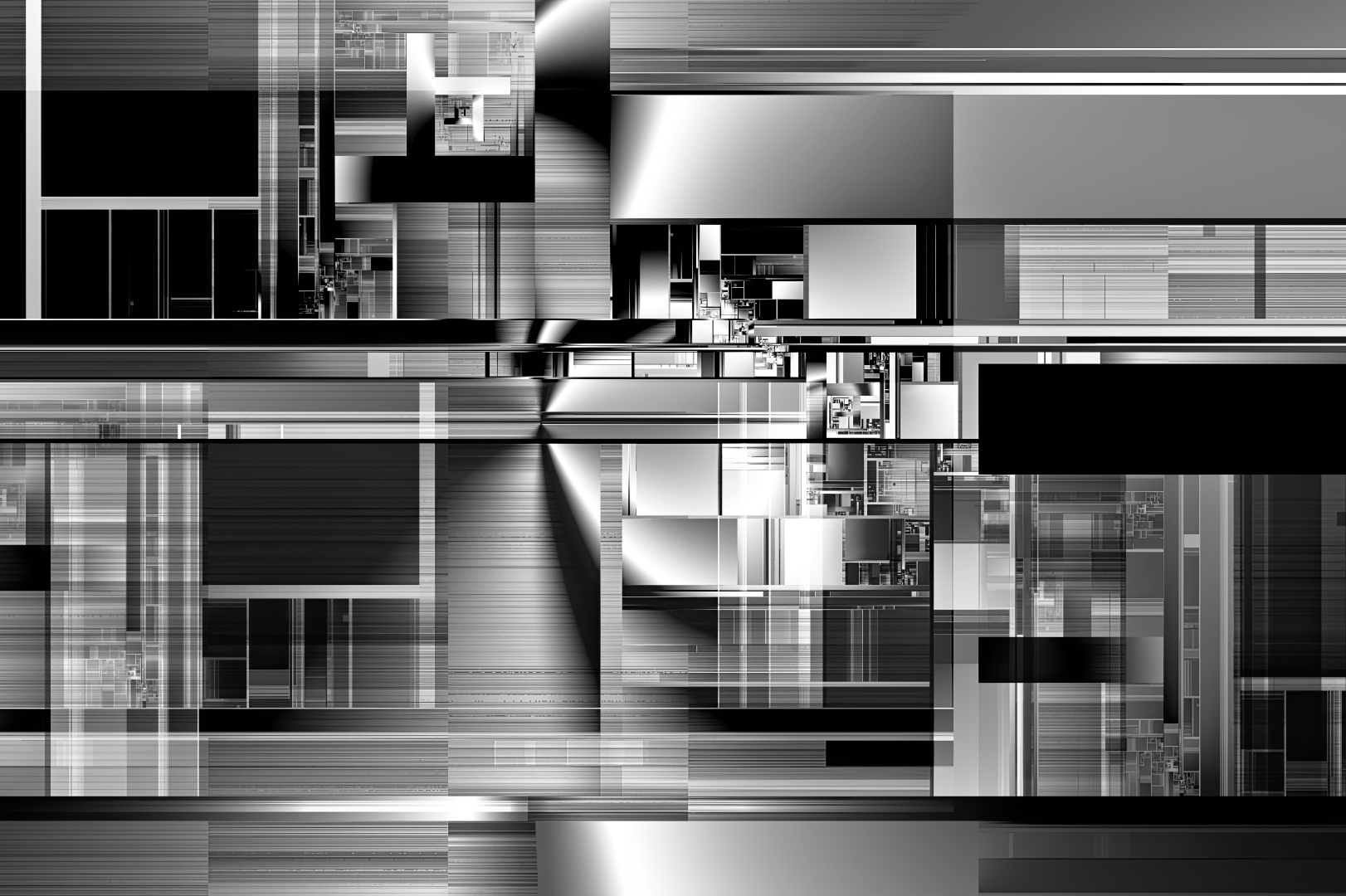
I don't know what "instructions" you are referring to, but here's an example of how I do it.
First I started a simple one-layer Julia fractal. Then I downloaded the Embrangles texture pack from
https://www.deviantart.com/velvet--glove/art/Embrangle-Textures-Community-Library-1057899877
This is a zip file containing "Embrangles Textures.upr". I unzipped it, saved the upr, and opened the upr. I clicked on number 16 and opened it as a one-layer fractal. I right clicked on the layer and selected copy.
Then I opened the Julia fractal, right clicked on its layer, and selected paste. This put the Embrangle as a second layer above the Julia layer at Normal merge mode and 100% intensity. Finally, I adjusted the texture layer merge to Soft Light and its intensity to 25%.
Here's the result:
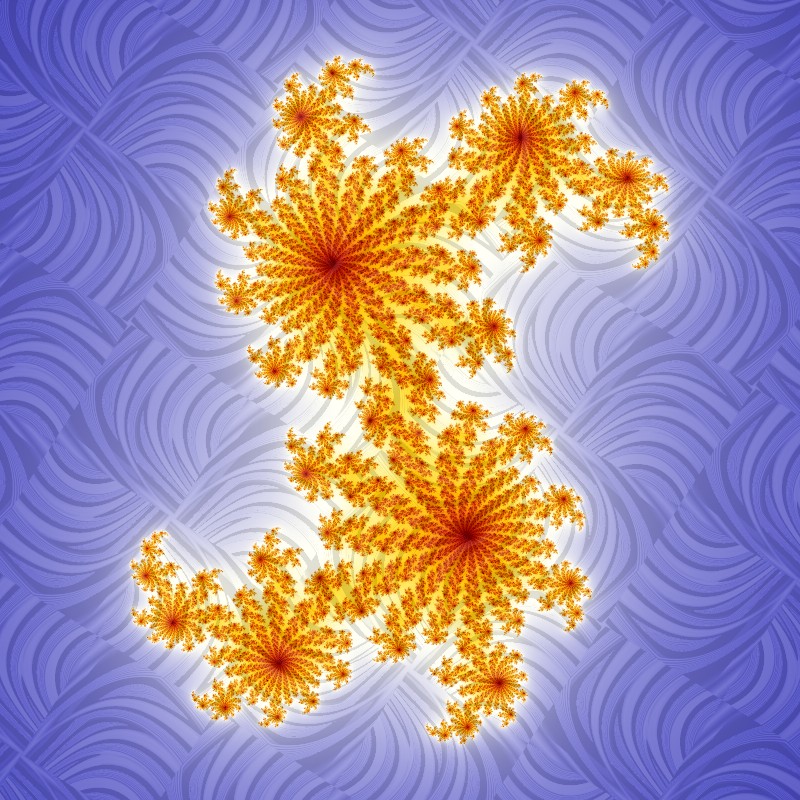
and its parameter file:
/>TextureExample {
::uALs5in2Va1SvNuNQ47Bw/HE0p2DWmP0ztgHitbOsobBKS75AaJKb2VSUhiqxp/63hk6h3sJ
ooABJzM8jzMcmvZUq18SDv5TbuLIwINNCW4fKuaG1iAxVebfjIM4FZl5CDTQogLC55LGvcD/
VhegRsXtULqkmBW4nltB7bGF/CdHpYHBRSDD4dGJvRyHkdnZvKG2cn7quYWy7NSVHL83smCI
4wAVPvUaelRzCaF6ziWVlgNoqNN2YD2MXUVs2xGjsnPM4ycNvbonrFdGfAa599Q08hAsK0Mc
RUBBVkSyIJ7yjSg/QppoigW+5OGKKDRipYKFS3zQZgSiiJU6i3rV62BGezdLaOnXLbEd8Wos
NwbjGvWHGAhT/KUGlNQGghHU/TlXcPCvJQvxpev1B9PZcKh/xIUg6FapqSWG8TPM2VarM/s9
+aPeQqlP8V2vr6Eg8g8fFMcEy7GtyAvCkNa+HManVpd1O8Qtwn8Cx5G/dHsG6xMyOyiGhtls
brVHOA78FYbSgOLEbF8OpPZ2Y6sQ2sQ+sQxsAGtezBDUFhg8rEfO70JvRn+G94JdvLqrBeML
iaPVIqAGKNOJF+F8D8krfqGzA+3m7sduxGur51yvKdUDgNDV+yLiyvyU1132VrKjGrbX6qg+
WR7JtjkE6j9/AjBWOM2WZtNqPPCsdbm8i0Ue5LWTfh3VJaOBNDw+JusRNCjRJTZvnM3ItdtI
UGGlidPknZhPI1DmgH8ZdoPC7fFSZv4h2eWyEBAChq9mXvtMrVnwgPTcVNu28o94t4IKlGvj
ERyTyc04nqL7uHzEX7BkwcPIbThat4ZnoDweMrUNcxjY/KCr4iXO4K0eMHWxcYxLHdexD44K
gj36k7JMDfyJg8SqQWSFyqT2vCwKumJ3g5wKmDLO5IZNVPuC4ozJyuBZl4TrLAgmTndwbQ1I
rYkEosDNxfE0wzazEoYSRcBCnliuhSpg9ElNLMqSe2MPirt9KMugk7VJsiIcSRyutYUUOJlY
z7OXB+iTkYj20Dujy4QRbzdn18KJ4dXaN0qUw27OVAw94udt4iiAJQHvyiRkgSVjCodTWSKo
TWwpZZZEsjc5Pjsge9spl1vJUe8olV5ui1Hu0PednvdS8HXw/ObztLCcLuxRJv/QNlQ/+hae
1fPO4++wNNjHhKWFXX5GytXfqr4GhDn3mgio572iiI25oe1Lg7JuNRzTyxo/TCTMMrFnGnkl
+B8myxTCNUBXwnlTsfhC9upLwguJdf0V6D/gsDTytfl474Flq2WQG+k9RRNHq1B/VDkKBP4/
HCCmBHFO3XtFuFOEJ+GeR8EtIPDnSyznMjXsjTxEceSyMe/l9nFnmUgnOguejk0/XcrvBsLh
8+B=
}
I don't know what "instructions" you are referring to, but here's an example of how I do it.
First I started a simple one-layer Julia fractal. Then I downloaded the Embrangles texture pack from
https://www.deviantart.com/velvet--glove/art/Embrangle-Textures-Community-Library-1057899877
This is a zip file containing "Embrangles Textures.upr". I unzipped it, saved the upr, and opened the upr. I clicked on number 16 and opened it as a one-layer fractal. I right clicked on the layer and selected copy.
Then I opened the Julia fractal, right clicked on its layer, and selected paste. This put the Embrangle as a second layer above the Julia layer at Normal merge mode and 100% intensity. Finally, I adjusted the texture layer merge to Soft Light and its intensity to 25%.
Here's the result:

and its parameter file:
TextureExample {
::uALs5in2Va1SvNuNQ47Bw/HE0p2DWmP0ztgHitbOsobBKS75AaJKb2VSUhiqxp/63hk6h3sJ
ooABJzM8jzMcmvZUq18SDv5TbuLIwINNCW4fKuaG1iAxVebfjIM4FZl5CDTQogLC55LGvcD/
VhegRsXtULqkmBW4nltB7bGF/CdHpYHBRSDD4dGJvRyHkdnZvKG2cn7quYWy7NSVHL83smCI
4wAVPvUaelRzCaF6ziWVlgNoqNN2YD2MXUVs2xGjsnPM4ycNvbonrFdGfAa599Q08hAsK0Mc
RUBBVkSyIJ7yjSg/QppoigW+5OGKKDRipYKFS3zQZgSiiJU6i3rV62BGezdLaOnXLbEd8Wos
NwbjGvWHGAhT/KUGlNQGghHU/TlXcPCvJQvxpev1B9PZcKh/xIUg6FapqSWG8TPM2VarM/s9
+aPeQqlP8V2vr6Eg8g8fFMcEy7GtyAvCkNa+HManVpd1O8Qtwn8Cx5G/dHsG6xMyOyiGhtls
brVHOA78FYbSgOLEbF8OpPZ2Y6sQ2sQ+sQxsAGtezBDUFhg8rEfO70JvRn+G94JdvLqrBeML
iaPVIqAGKNOJF+F8D8krfqGzA+3m7sduxGur51yvKdUDgNDV+yLiyvyU1132VrKjGrbX6qg+
WR7JtjkE6j9/AjBWOM2WZtNqPPCsdbm8i0Ue5LWTfh3VJaOBNDw+JusRNCjRJTZvnM3ItdtI
UGGlidPknZhPI1DmgH8ZdoPC7fFSZv4h2eWyEBAChq9mXvtMrVnwgPTcVNu28o94t4IKlGvj
ERyTyc04nqL7uHzEX7BkwcPIbThat4ZnoDweMrUNcxjY/KCr4iXO4K0eMHWxcYxLHdexD44K
gj36k7JMDfyJg8SqQWSFyqT2vCwKumJ3g5wKmDLO5IZNVPuC4ozJyuBZl4TrLAgmTndwbQ1I
rYkEosDNxfE0wzazEoYSRcBCnliuhSpg9ElNLMqSe2MPirt9KMugk7VJsiIcSRyutYUUOJlY
z7OXB+iTkYj20Dujy4QRbzdn18KJ4dXaN0qUw27OVAw94udt4iiAJQHvyiRkgSVjCodTWSKo
TWwpZZZEsjc5Pjsge9spl1vJUe8olV5ui1Hu0PednvdS8HXw/ObztLCcLuxRJv/QNlQ/+hae
1fPO4++wNNjHhKWFXX5GytXfqr4GhDn3mgio572iiI25oe1Lg7JuNRzTyxo/TCTMMrFnGnkl
+B8myxTCNUBXwnlTsfhC9upLwguJdf0V6D/gsDTytfl474Flq2WQG+k9RRNHq1B/VDkKBP4/
HCCmBHFO3XtFuFOEJ+GeR8EtIPDnSyznMjXsjTxEceSyMe/l9nFnmUgnOguejk0/XcrvBsLh
8+B=
}